 Transforma
Convert PNG to PDF on iPhone
Convert PNG images to PDF documents on your iPhone — perfect for sharing, printing, or archiving images as documents.
How to Convert PNG to PDF with Transforma
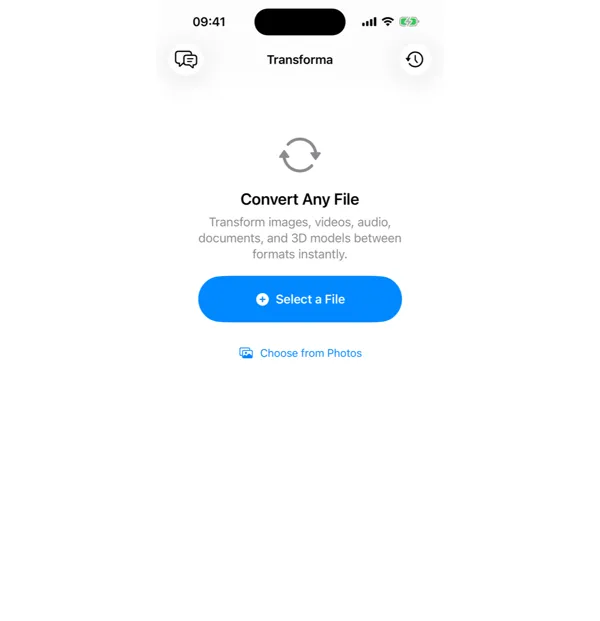
Select your PNG file
Open Transforma and tap "Select a File" or "Choose from Photos" to pick your PNG file.
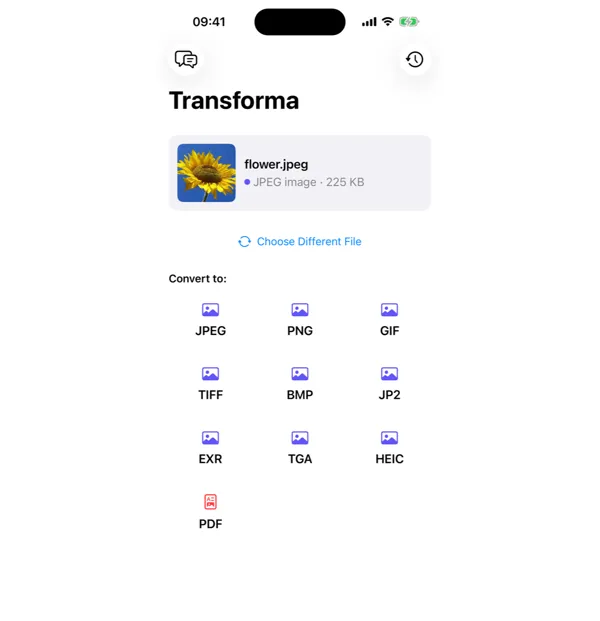
Tap PDF
From the format grid, select PDF as your output format. Adjust quality or settings if needed.
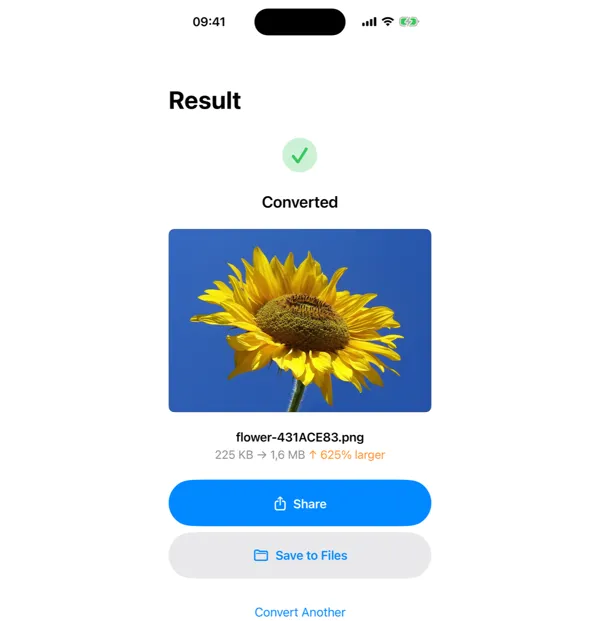
Share or save
Your converted PDF file is ready instantly. Tap Share to send it, or Save to Files to keep it on your device.
Why Convert PNG to PDF?
- Create printable documents from screenshots or images
- Combine images into a professional document format
- Submit images as PDF attachments for forms or applications
- Archive screenshots or diagrams in a standard document format
How PNG to PDF Conversion Works
Transforma uses PDFKit to create a new PDF document and embeds the PNG image at its original resolution. The image is placed on a page sized to match the image dimensions, preserving the original aspect ratio. For multiple images, batch conversion creates a multi-page PDF with one image per page. The resulting PDF can be opened in any PDF viewer and prints at the full resolution of the original PNG. Transparency in the original PNG is preserved as-is in the PDF.
Common Use Cases
- Converting screenshots of receipts into PDF for expense reports
- Creating print-ready documents from design mockups or diagrams
- Combining multiple screenshots into a single multi-page PDF document
- Submitting images as PDF attachments for job applications or insurance claims
PNG vs PDF — Key Differences
| Feature | PNG | |
|---|---|---|
| Description | PNG (Portable Network Graphics) is a lossless image format that preserves full image quality with transparency support. It's widely used for screenshots, graphics, and images where quality matters. | PDF is the standard document format for sharing and printing. Converting images to PDF makes them easy to print at full quality, attach to emails professionally, or archive in document management systems. |
Tips for Best Results
- For the smallest file size, consider converting to JPG first if you don't need transparency
- Use batch conversion to combine multiple PNGs into a single multi-page PDF
- The output PDF resolution matches your original image — a 4K screenshot will produce a high-quality print
Why Use Transforma?
100% On-Device
Your files never leave your iPhone. No servers, no uploads, complete privacy.
Instant Conversion
No waiting for uploads or downloads. Conversions happen in seconds.
Works Offline
No internet needed. Convert files anywhere — on a plane, in the field, offline.
One-Time Purchase
$4.99 once. No subscriptions, no ads, no limits. Convert as much as you want.