 Transforma
Convert HEIC to PNG on iPhone
Convert Apple HEIC photos to lossless PNG format on your iPhone — preserve full image quality with no compression artifacts.
How to Convert HEIC to PNG with Transforma
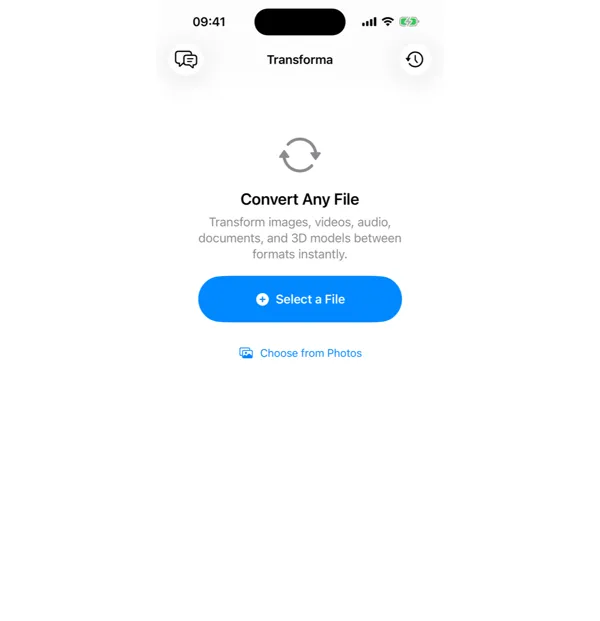
Select your HEIC file
Open Transforma and tap "Select a File" or "Choose from Photos" to pick your HEIC file.
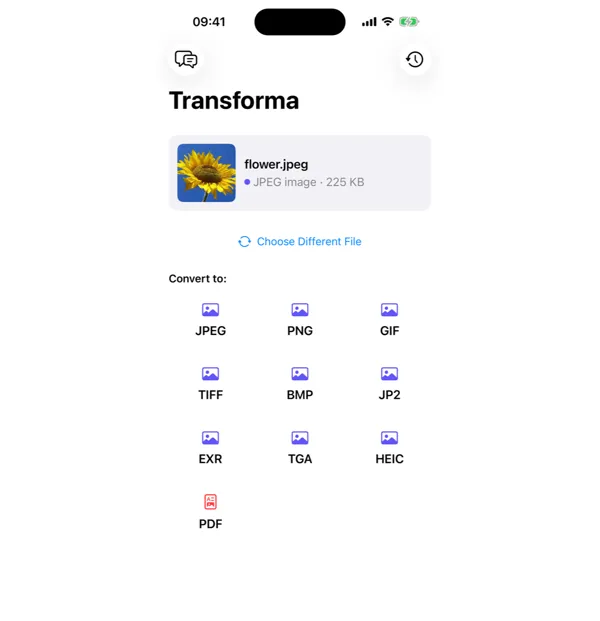
Tap PNG
From the format grid, select PNG as your output format. Adjust quality or settings if needed.
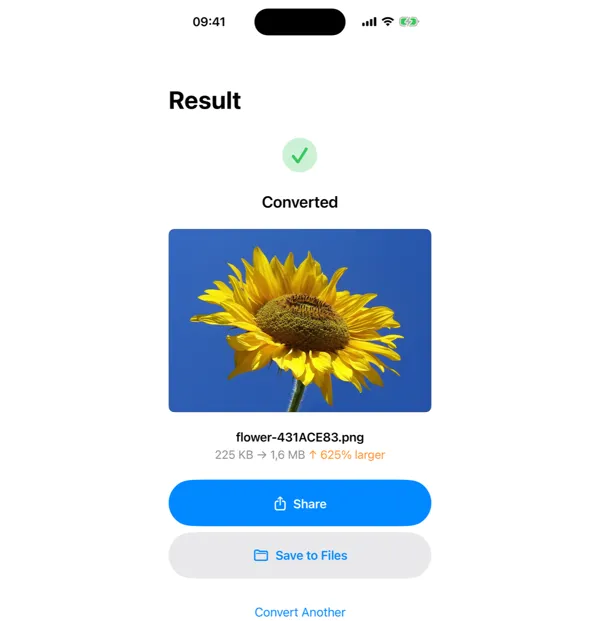
Share or save
Your converted PNG file is ready instantly. Tap Share to send it, or Save to Files to keep it on your device.
Why Convert HEIC to PNG?
- Preserve maximum image quality with lossless compression
- Maintain transparency support for graphics and overlays
- Get pixel-perfect image quality for editing or design work
- Share photos in a widely supported lossless format
How HEIC to PNG Conversion Works
Like HEIC-to-JPG, this conversion decodes the HEVC-compressed image from the HEIF container using CoreImage. However, instead of re-encoding with lossy JPEG compression, the full-resolution bitmap is encoded as a lossless PNG. This means zero quality loss — every pixel is preserved exactly. The trade-off is larger file sizes: a 12MP photo might be 5 MB as HEIC, 3 MB as JPG, but 15-25 MB as PNG. EXIF metadata and color profile (Display P3 or sRGB) are preserved.
Common Use Cases
- Extracting photos for use in graphic design where lossless quality is required
- Preserving transparent backgrounds from Live Photo subjects or Portrait mode cutouts
- Creating print-quality images from iPhone photos without any compression artifacts
- Preparing images for scientific or medical documentation where pixel accuracy matters
HEIC vs PNG — Key Differences
| Feature | HEIC | PNG |
|---|---|---|
| Description | HEIC is Apple's high-efficiency image format, offering great compression but limited compatibility outside Apple devices. | PNG is a lossless image format that preserves every pixel perfectly. Unlike JPG, PNG introduces zero compression artifacts, making it ideal when image quality is paramount. |
Tips for Best Results
- PNG files are much larger than JPG — only use PNG when you need lossless quality or transparency
- For photos going on social media, JPG is usually the better choice (smaller files, no visible difference)
- PNG is ideal for screenshots, diagrams, and graphics with text — these compress very efficiently in PNG
Why Use Transforma?
100% On-Device
Your files never leave your iPhone. No servers, no uploads, complete privacy.
Instant Conversion
No waiting for uploads or downloads. Conversions happen in seconds.
Works Offline
No internet needed. Convert files anywhere — on a plane, in the field, offline.
One-Time Purchase
$4.99 once. No subscriptions, no ads, no limits. Convert as much as you want.