 Transforma
Convert HEIC to JPG on iPhone
Convert Apple HEIC photos to universally compatible JPG format on your iPhone — no uploads, completely private.
How to Convert HEIC to JPG with Transforma
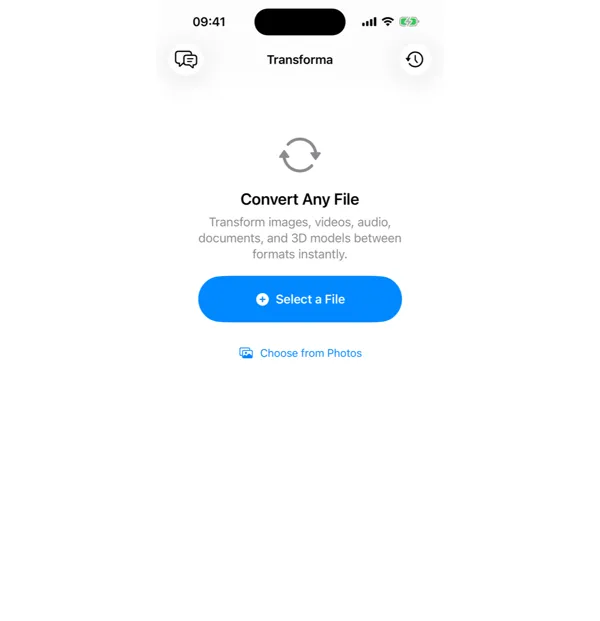
Select your HEIC file
Open Transforma and tap "Select a File" or "Choose from Photos" to pick your HEIC file.
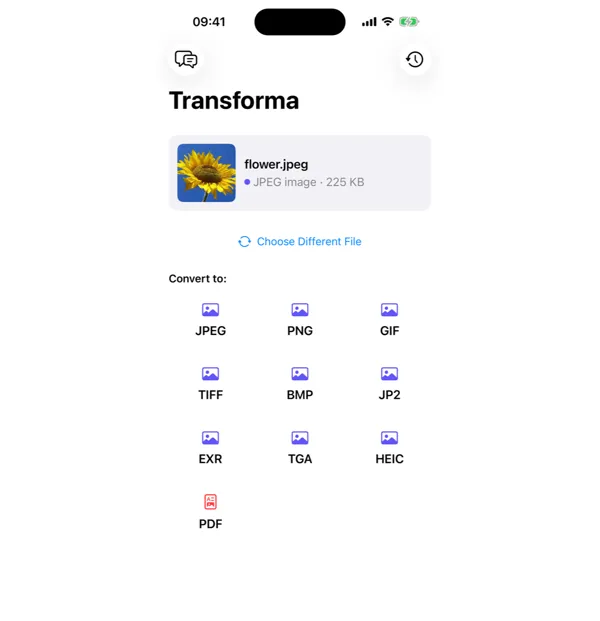
Tap JPG
From the format grid, select JPG as your output format. Adjust quality or settings if needed.
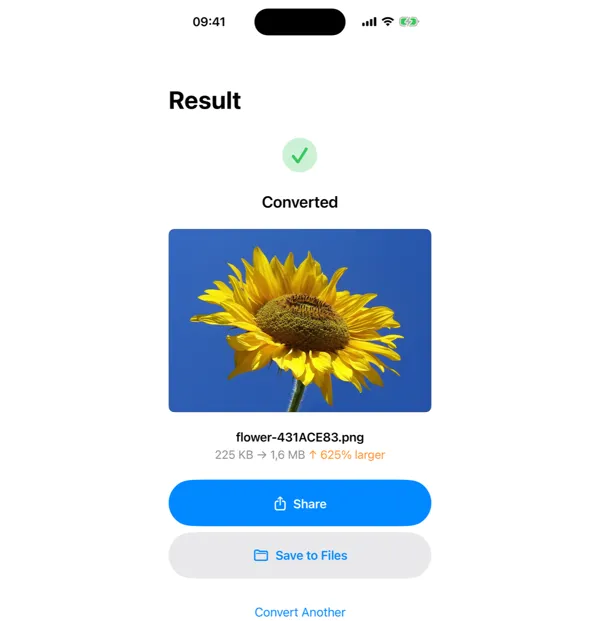
Share or save
Your converted JPG file is ready instantly. Tap Share to send it, or Save to Files to keep it on your device.
Why Convert HEIC to JPG?
- Share photos with Android users or Windows PCs that don't support HEIC
- Upload to websites and social media that require JPG format
- Email photos in a universally compatible format
- Maintain broad compatibility with older software and devices
How HEIC to JPG Conversion Works
HEIC uses HEVC (H.265) compression in a HEIF container, achieving roughly 50% smaller files than JPG at equivalent quality. JPG uses the older DCT-based compression from 1992. When converting, Transforma uses Apple's CoreImage framework to decode the HEIC at full resolution and re-encode as JPG with adjustable quality (default 92%). EXIF metadata — including camera model, GPS coordinates, date taken, and orientation — is preserved by default. You can also strip metadata before sharing if you want to remove location data.
Common Use Cases
- Emailing vacation photos to family members on Android or Windows
- Uploading product images to eBay, Etsy, or other marketplaces that reject HEIC
- Attaching photos to insurance claims, medical forms, or government applications
- Importing iPhone photos into Adobe Photoshop, Canva, or other editors on non-Apple platforms
HEIC vs JPG — Key Differences
| Feature | HEIC | JPG |
|---|---|---|
| Description | HEIC (High Efficiency Image Container) is Apple's default photo format since iOS 11. It offers roughly 50% smaller file sizes than JPG while maintaining the same image quality. However, HEIC is not universally supported outside the Apple ecosystem. | JPG (JPEG) is the most widely supported image format in the world. Nearly every device, browser, and application can open JPG files. It uses lossy compression, meaning some quality is lost during compression, but the trade-off is near-universal compatibility. |
Tips for Best Results
- Use quality 90-95% for photos you want to print — the file will be larger but visually lossless
- Use quality 75-80% for web or social media — noticeably smaller files with minimal visible difference
- If you need transparency, convert to PNG instead — JPG does not support transparent backgrounds
Why Use Transforma?
100% On-Device
Your files never leave your iPhone. No servers, no uploads, complete privacy.
Instant Conversion
No waiting for uploads or downloads. Conversions happen in seconds.
Works Offline
No internet needed. Convert files anywhere — on a plane, in the field, offline.
One-Time Purchase
$4.99 once. No subscriptions, no ads, no limits. Convert as much as you want.