 Transforma
Convert DOCX to PDF on iPhone
Convert Word DOCX documents to PDF format on your iPhone — preserve formatting and create shareable, print-ready documents.
How to Convert DOCX to PDF with Transforma
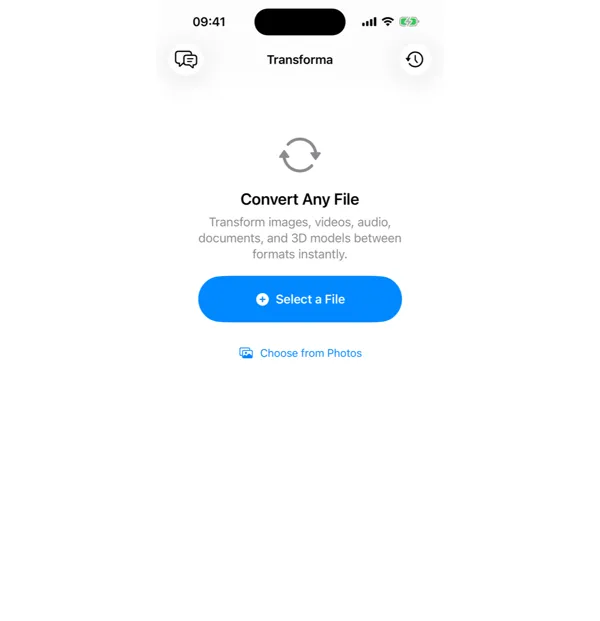
Select your DOCX file
Open Transforma and tap "Select a File" or "Choose from Photos" to pick your DOCX file.
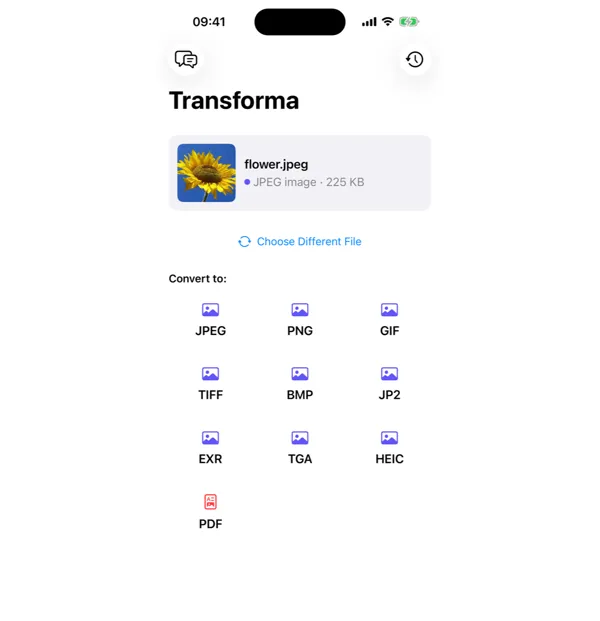
Tap PDF
From the format grid, select PDF as your output format. Adjust quality or settings if needed.
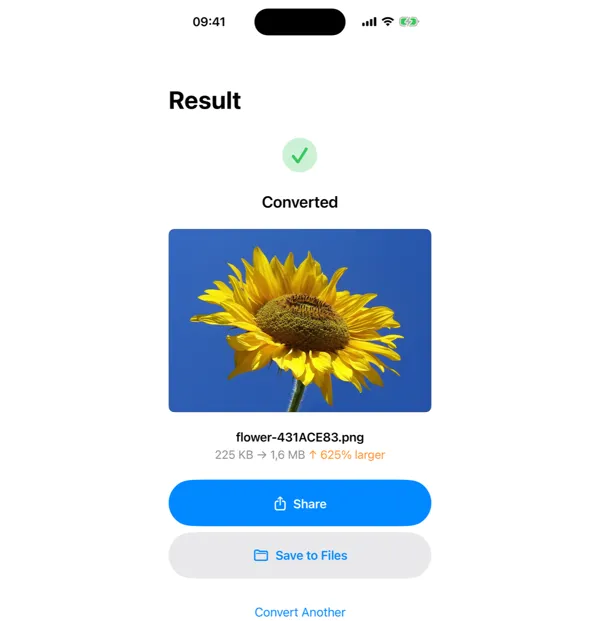
Share or save
Your converted PDF file is ready instantly. Tap Share to send it, or Save to Files to keep it on your device.
Why Convert DOCX to PDF?
- Share documents that look the same on every device
- Create print-ready versions of Word documents
- Submit professional documents that can't be easily edited
- Archive finalized documents in a universal format
How DOCX to PDF Conversion Works
DOCX files use the Open XML standard with embedded fonts, styles, and layout instructions that can render differently across applications. Transforma converts to PDF by processing the DOCX structure through Apple's document rendering pipeline, embedding all fonts and flattening the layout into a fixed-format PDF. Page breaks, headers, footers, and basic table formatting are preserved. The output PDF is ready for sharing, signing, or printing.
Common Use Cases
- Sending a finalized contract or proposal that recipients cannot accidentally edit
- Printing resumes, cover letters, or academic papers with consistent formatting
- Submitting homework, reports, or assignments as PDF attachments
- Creating print-ready versions of newsletters, flyers, or marketing materials
DOCX vs PDF — Key Differences
| Feature | DOCX | |
|---|---|---|
| Description | DOCX is Microsoft Word's editable document format with rich text, tables, and images. While great for editing, DOCX files can look different across devices depending on installed fonts and software versions. | PDF locks in your document's exact appearance — fonts, layout, and images look identical everywhere. It's the standard for sharing final documents, contracts, reports, and print-ready files. |
Tips for Best Results
- Review the PDF output to ensure complex formatting (tables, columns) rendered correctly
- For documents with custom fonts, the conversion may substitute similar system fonts
- The PDF output is not password-protected by default — use a PDF editor to add protection if needed
Why Use Transforma?
100% On-Device
Your files never leave your iPhone. No servers, no uploads, complete privacy.
Instant Conversion
No waiting for uploads or downloads. Conversions happen in seconds.
Works Offline
No internet needed. Convert files anywhere — on a plane, in the field, offline.
One-Time Purchase
$4.99 once. No subscriptions, no ads, no limits. Convert as much as you want.